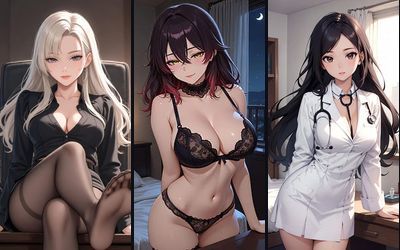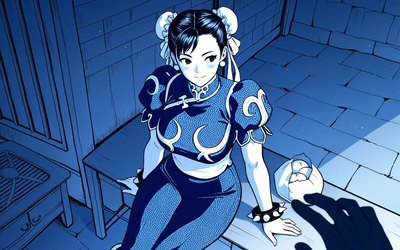
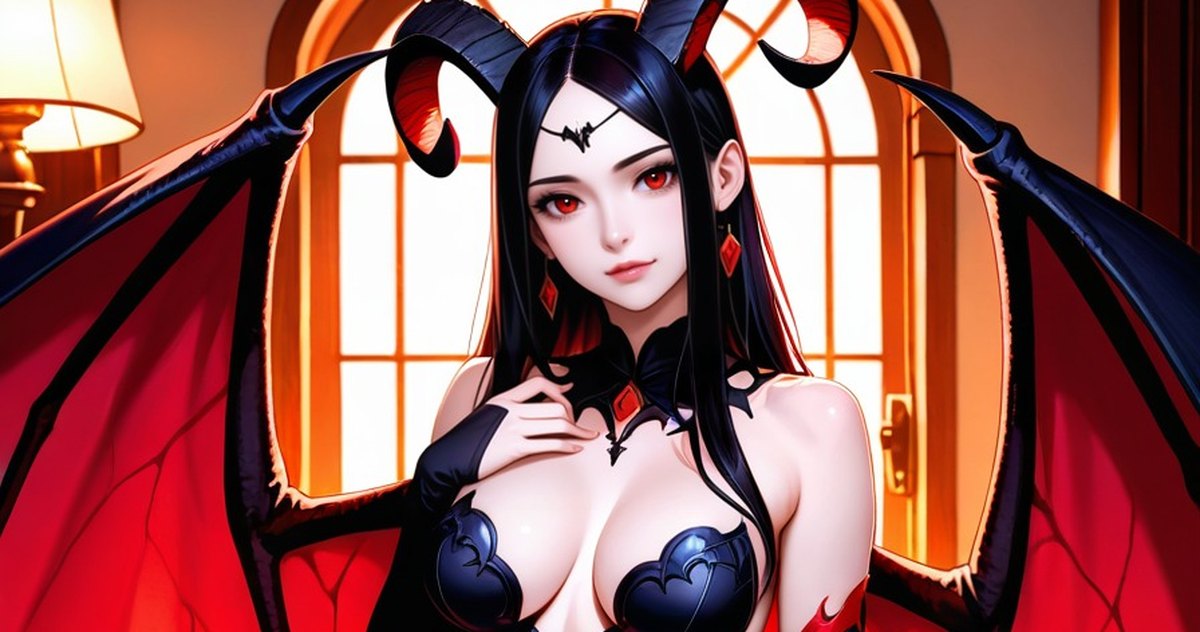
Animate a photo: your character moves in a short clip
Any photo your character sends in chat can now come to life. She moves the way the scene suggests: brushes her hair back, smiles, or carries on with what she was doing.
How to animate a photo
Each photo in the conversation has a small ▶ button in its top-left corner. Tap it to open a row of options under the photo: clip length, HD and loop. Confirm, and after a short wait the clip takes the photo’s place in the same frame.
Tap the clip to watch it full screen. Want the still back? Tap the icon in the corner to switch between the photo and the clip.
What moves
The motion follows your conversation. If you just woke up together, she stretches under the blanket; if the scene is hot, the clip carries on with what is happening between you.
Her face, hair, outfit and the room stay the same as on the photo. With loop on, the last frame flows back into the first, so the clip plays without a jump.
FAQ
Where is the animate button?
In the top-left corner of any photo in your chat, the ▶ icon.
Does the clip stay in the chat?
Yes. It replaces the photo in the conversation, and you can rewatch it any time.